
TinyFingers: Toddler Painting
Finger painting for little hands. Paint with many fingers at once, each with its own color and note.
- Android
- iPhone & iPad
- Mac
- Windows
Watch
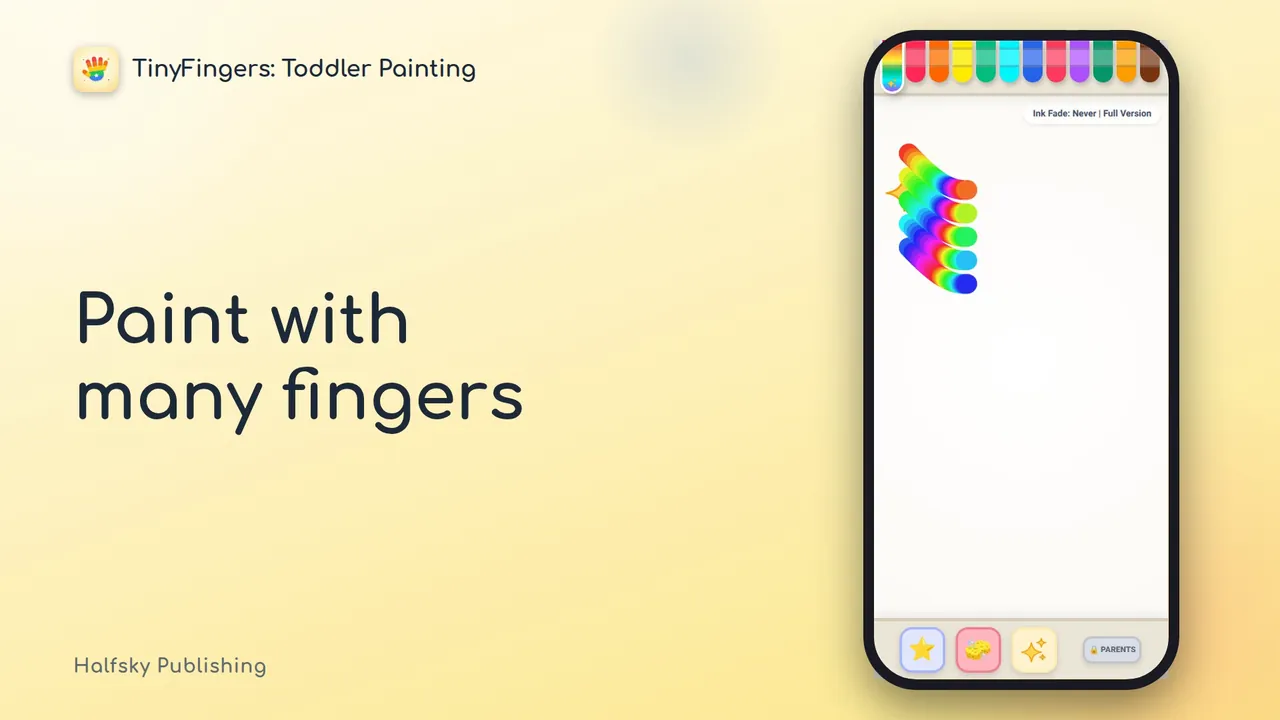
The video plays from YouTube when you tap it.
About
TinyFingers is a calm finger-painting and drawing app for toddlers and preschool kids. Hand over your phone or tablet without worry: every touch turns into color and gentle music, and little hands stay inside the app.
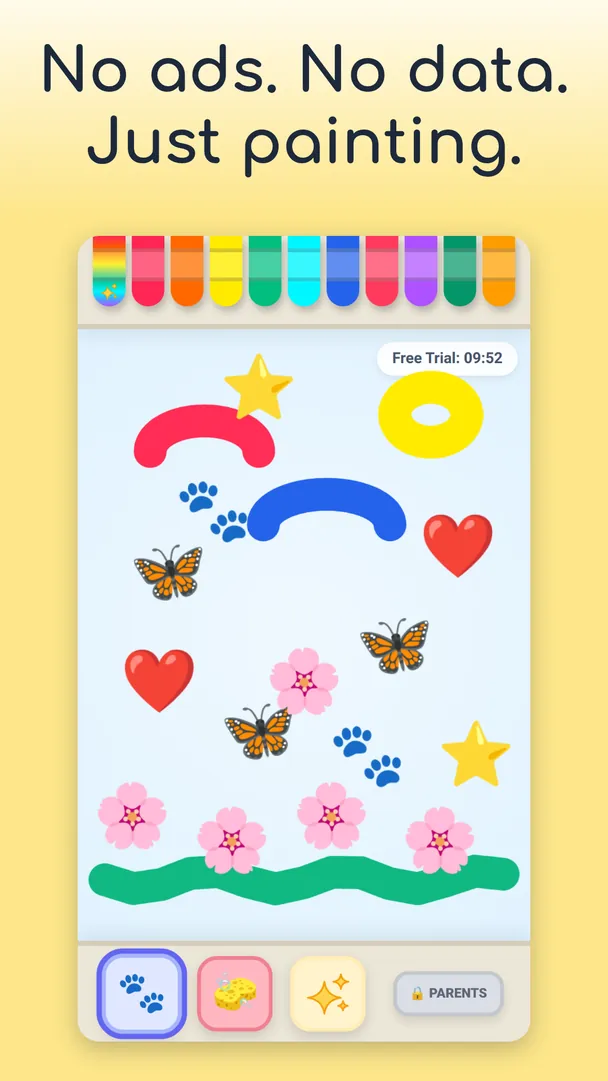
No ads. No accounts. No data collected. Works offline.
- Paint with the whole hand. Many fingers at once, each with its own color and note. A whole hand plays a little chord from a happy five-note scale, so it always sounds nice.
- Sparkle surprise. Press down a whole hand for sparkles.
- Five sounds to choose from: Classic, Music Box, Harp, Wind Chimes, and Flow, where each finger hums a soft tone that glides as it moves.
- Made for little hands. A rainbow crayon, stamps, a big eraser and a hold-to-clear button.
- Ink that fades on its own after 1 to 5 minutes, or never, so there is always a fresh page.
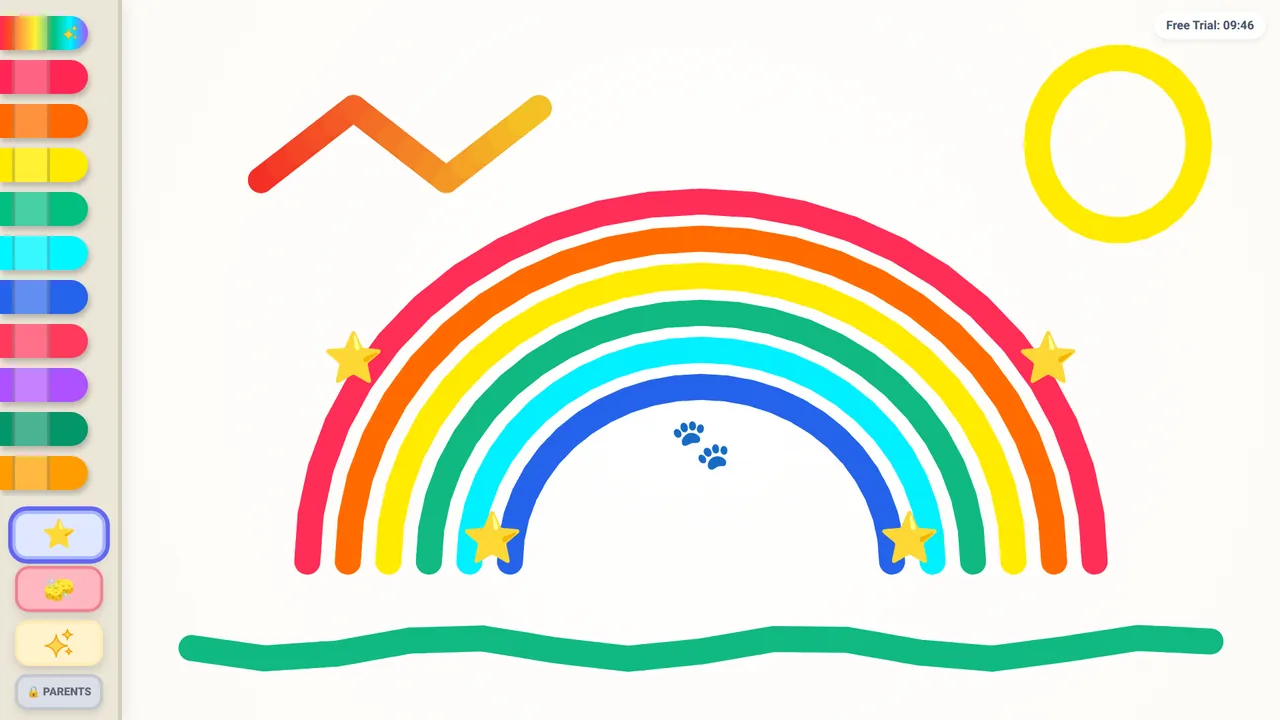
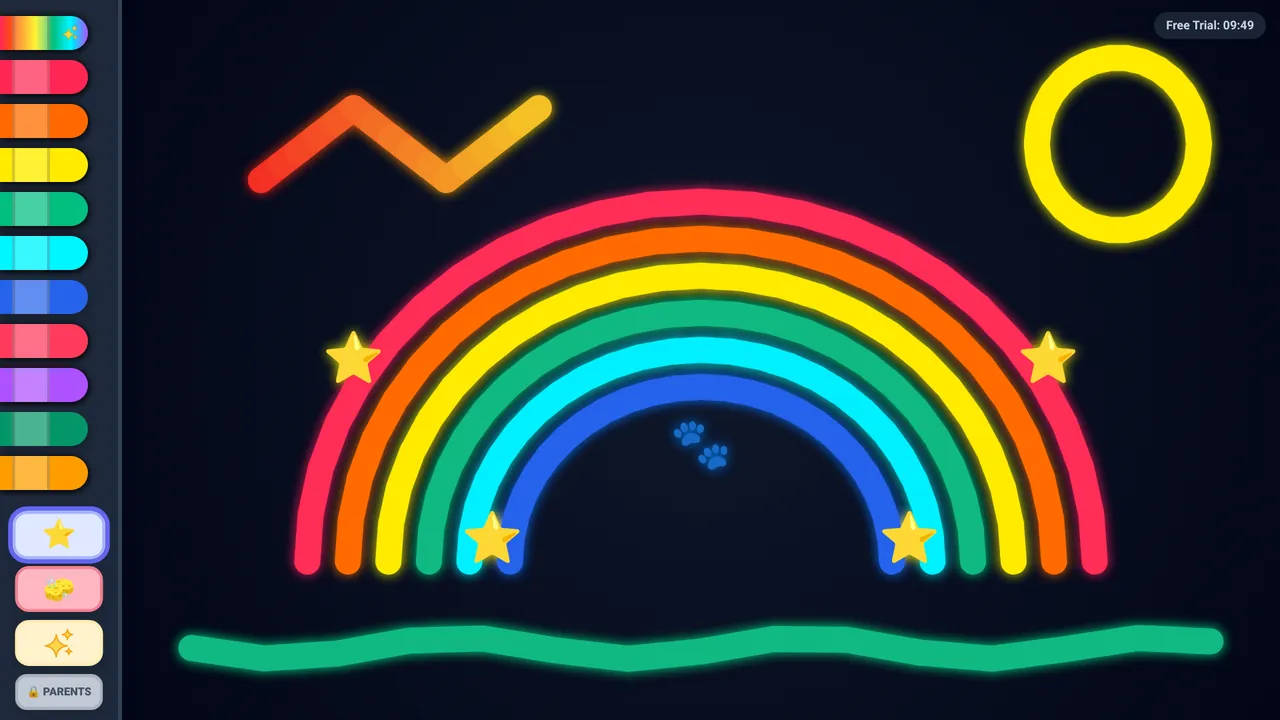
- Backgrounds in paper, chalkboard, night, galaxy and sky, with glowing colors on the dark ones.
- A device lock that keeps your child inside the app until you unlock it.
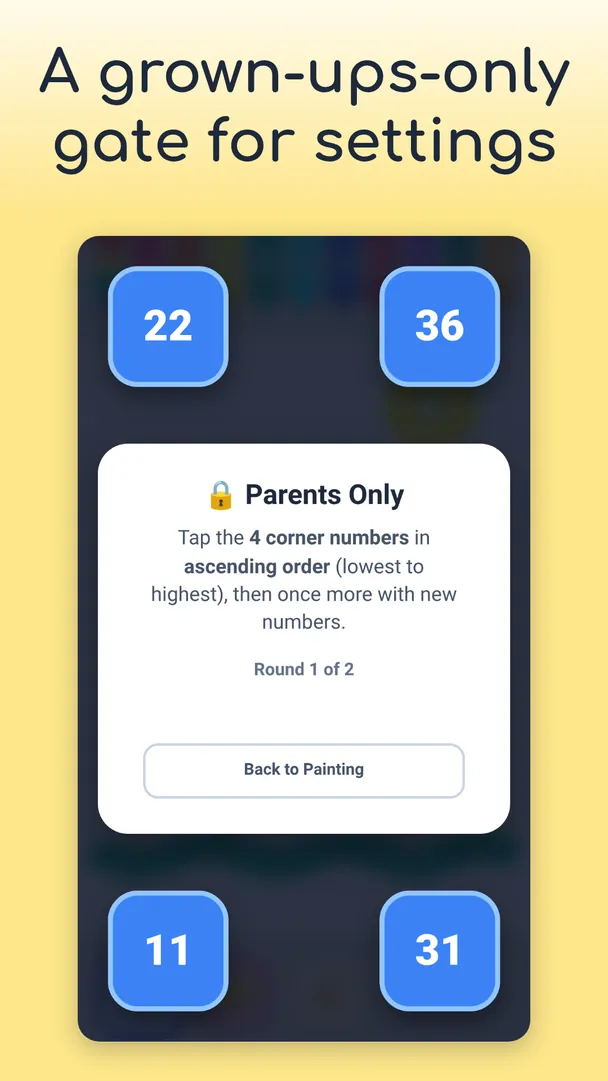
- A grown-ups-only gate in front of settings, saving pictures, unlocking and the purchase.
- Save a favorite picture as “fridge art”, and set the brush from fine to chunky.
- Free to try. Paint free for 10 minutes every time you open the app. One small one-time purchase unlocks unlimited painting. No subscriptions, ever.
Screenshots
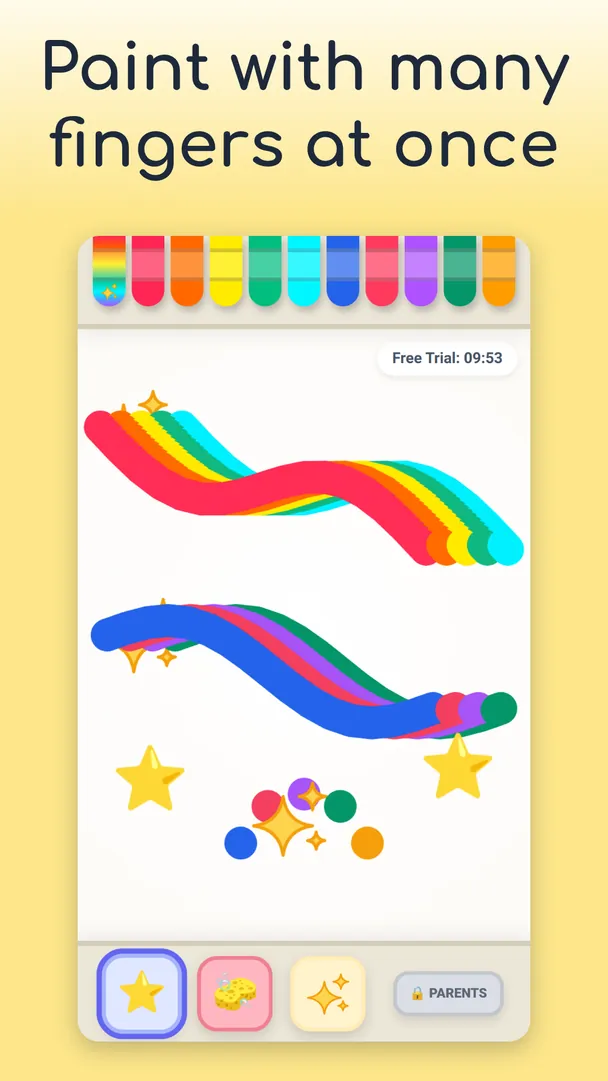
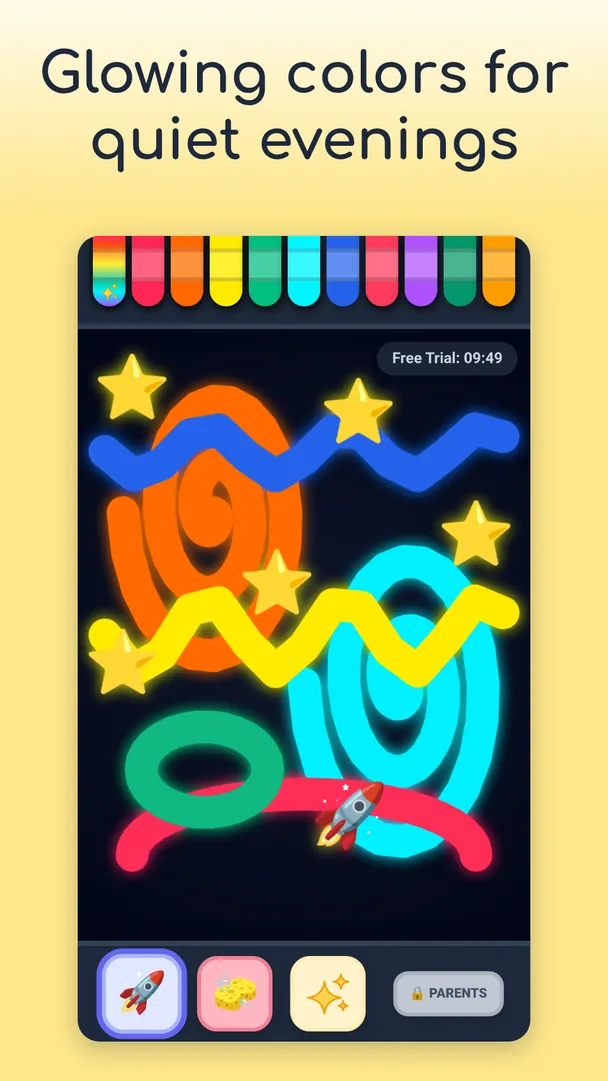
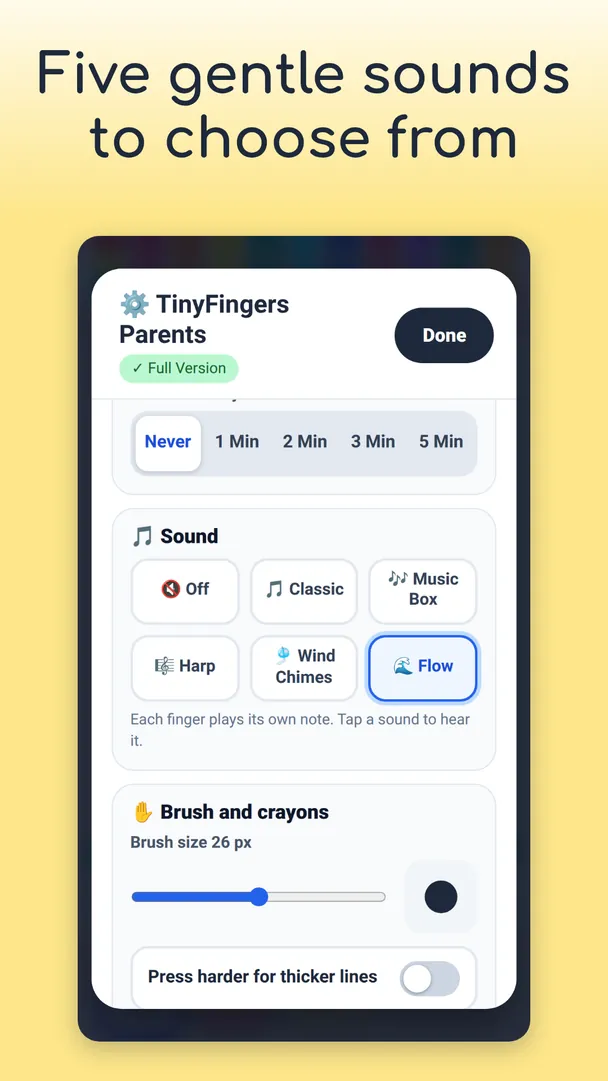
On tablets and computers
Tips & tricks
Painting with many fingers
Painting with several fingers at once is the whole idea. But on some Android phones, touching the screen with three or more fingers sets off a system gesture, such as a screenshot or split screen, and the painting stops or the app gets pushed aside. If that happens, turn those gestures off. (On Android phones where this is likely, the Parents menu shows a short reminder too.)
Menu names change between phone makers and software versions. If you cannot find a path below, search Settings for “three-finger”, “screenshot” or “split screen”.
OnePlus, OPPO and realme
- Settings › Additional settings › Screenshot: turn off “3-finger swipe down” and “3-finger touch and hold”. On some versions the three-finger screenshot lives under Settings › Buttons & gestures instead.
- Settings › Special features › Split screen: turn off the multi-finger split-screen or multitask swipe. Also check Gestures & motions.
- This is what fixed it on a OnePlus Nord 2T running OxygenOS 14.
- You can also try the Games app: add TinyFingers, then open Game Assistant › Touch optimization › Mistouch prevention, which can block system gestures while a game is open. We have not tested this one ourselves.
Xiaomi, Redmi and POCO
- Settings › Additional settings › Gesture shortcuts › Take screenshot: turn off the three-finger swipe (or pick a different way to take screenshots). Look through the other entries in Gesture shortcuts for any further multi-finger gestures.
Motorola
- Moto app › Gestures › Three-finger screenshot: switch it off. On some models the gesture settings are also in Settings › System › Gestures.
Huawei and Honor
- Settings › Accessibility features › Shortcuts & gestures › Take screenshot: turn off “Three-finger screenshot”. On some models it is under Accessibility features › Motion control.
- On the same screen, turn off the knuckle gestures (knuckle screenshot and the like), which can fire by accident.
Samsung Galaxy
- Settings › Advanced features › Motions and gestures › Palm swipe to capture: switch it off. A whole hand sliding across the screen can trigger it.
Windows laptops with a touchscreen
- Windows 11 turns three- and four-finger swipes into Task View and Show desktop, and no app can switch that off. Settings › Bluetooth & devices › Touch: turn off “Three- and four-finger touch gestures”. The Parents menu has a button that opens this page.
Another phone?
Search Settings for “three-finger”, “screenshot”, “split screen” and “gestures”. If you find what worked for your phone, tell us and we will add it here.
Keep your child inside the app
- Android: TinyFingers uses the screen pinning that is built into Android (“App pinning”), so Home, Back and other apps stay out of reach. Switch it on in Settings (search for “app pinning”), then use Lock Device in the Parents menu. Tip: also turn on “Ask for PIN before unpinning”, so a clever toddler cannot just undo it.
- iPhone and iPad: TinyFingers uses Guided Access, the lock built into iOS. Switch it on in Settings › Accessibility › Guided Access, then triple-click the side button (or the Home button on devices that have one) while the app is open.
- Mac: lock it from the Parents menu. The app hides the Dock and the menu bar and turns off app switching and Force Quit until a grown-up unlocks it, behind the parental gate.
- Windows: the app runs full screen and, while locked, ignores the Windows key, Alt+Tab and Alt+F4. Ctrl+Alt+Del always works. You unlock it from the Parents menu.
Open the Parents menu
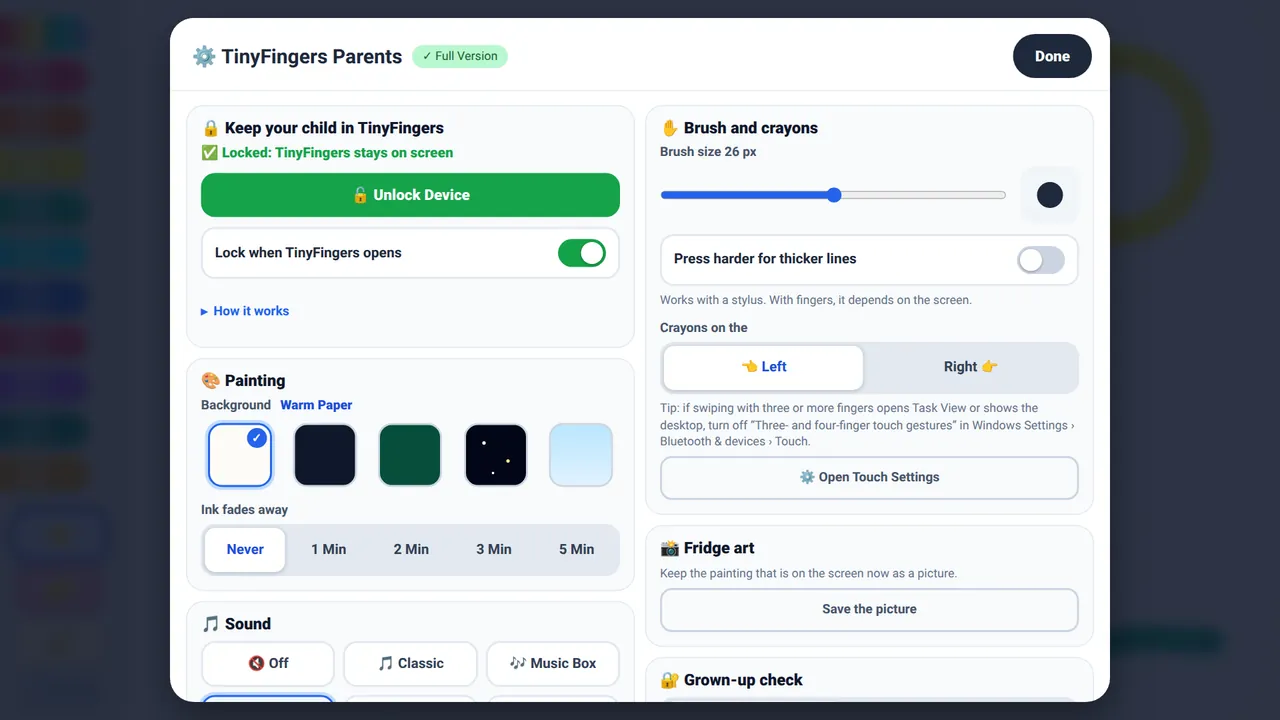
Tap the Parents button, then tap the four corner numbers from the lowest to the highest. You do this twice, with new numbers the second time. The menu starts with the Full Version (until you have it), then the device lock, the background and ink-fade time, the sound (off, or Classic, Music Box, Harp, Wind Chimes or Flow), the brush size and crayon side, saving pictures, and the grown-up check. In the grown-up check you can choose “Only for buying”: then the menu opens without the number puzzle, but buying still asks.
More little tricks
- Pokers and slappers welcome. The stamps are easy for toddlers who poke instead of draw, and a flat hand pressed down makes sparkles. Clearing the page takes a press-and-hold, so a slap on the screen will not wipe the picture.
- Quiet evenings. Pick a dark background (Night Slate, Green Board or Deep Galaxy) for glowing colors. It is easy on the eyes in a dim room or on a car ride. For a quiet place, set the sound to Off.
- Keep a picture. Set the ink fade to “never” while you paint something you like, then save it as fridge art. Pictures go to the Pictures folder on Android, Photos on iPhone and iPad, the TinyFingers folder in Pictures on a Mac, and Downloads on Windows.
- Sit together. Name the colors, listen to the music your little one makes, and try a different sound each time.
Frequently asked questions
Is TinyFingers free?
It is free to try: you get 10 minutes of painting every time you open the app. When the time is up you see a “Time for a break!” screen. Open the app again for another 10 free minutes, or unlock unlimited painting with one small one-time purchase (no subscription). The purchase button sits in the Parents menu, behind the grown-ups-only gate.
Already bought it? Use “Restore previous purchase” in the Parents menu, signed in to the same store account.
Does the app collect any data?
No. There are no accounts, no analytics, no ads and no tracking. Settings and the time left stay on your device. The purchase is handled entirely by the store you buy from. See the privacy policy for the details.
Are there ads?
No. There are no ads of any kind.
Does it work offline?
Yes. It makes no network requests while your child paints, so it works without a connection.
Why does the paint fade away, and can I change that?
Fading ink keeps the page fresh, so a young painter never gets stuck with a muddy canvas and you do not have to keep clearing it. In the Parents menu you can set the ink to fade after 1 to 5 minutes, or never.
How do I open the Parents menu?
Tap the Parents button, then tap the four corner numbers from the lowest to the highest, twice (the numbers change each time).
How do I leave the app?
Android and Windows: open the Parents menu and choose Exit TinyFingers. The time-up screen has a gated Exit button too.
iPhone and iPad: the app does not close itself. End Guided Access (triple-click the side or Home button and enter your passcode), then leave the app as usual.
Which devices does it run on?
Android: Android 8.0 or newer. Windows: Windows 10 (version 1809) or newer. iPhone and iPad: iOS or iPadOS 17 or newer. Mac: macOS 14 or newer. The Apple versions come once the app is in the App Store. It is made for phones and tablets; on Windows it works with touch, a mouse or a pen, and on a Mac with the mouse or trackpad.
Painting with several fingers does not work on my phone.
Some phones treat three or more fingers as a system gesture (screenshot, split screen). See Painting with many fingers above for how to switch those off on OnePlus, OPPO, realme, Xiaomi, Redmi, POCO, Motorola, Huawei, Honor and Samsung phones.
How do I contact you?
Write to support@halfskypublishing.com.
Get it
TinyFingers is free to try on every platform it comes to.
- Microsoft StoreWindows
- Google Play: coming soonAndroid
- App Store: coming sooniPhone, iPad and Mac
For daycare and schools: TinyFingers Early Years
Join the test
Try new versions before everyone else, for free, and tell us what you think.
Android: join the Halfsky Testers group, then become a tester on Google Play.
iPhone and iPad: install Apple's TestFlight app, then open the invitation.
Privacy
No. There are no accounts, no analytics, no ads and no tracking. Settings and the time left stay on your device. The purchase is handled entirely by the store you buy from.
Support
Questions, a bug, or an idea? Write to support@halfskypublishing.com. It helps to say which device and which version of its system you use.
How TinyFingers handles your data is in the TinyFingers privacy policy.